This article shows you how to use the Purple App's global map, find WiFi
when you have no mobile signal, and help other users by keeping our map
up to date.
What the map pins mean
Three pin types appear on the Explore page, each with a different connection method.
Purple WiFi Pass - Our official partner locations.
Your phone connects automatically the moment you walk into range,
the same way it joins your home WiFi.
Private WiFi Pass - Secure networks for specific
businesses, offices or universities. Only visible if you signed up
to Purple with a verified work or student email.
Community WiFi - Spots added by other Purple users.
These aren't official Purple partners, so they may need a password
or a short form to get online.
Searching and filtering the map
Tap the search bar at the top of the Explore page to look for places
near you. Use Purple's filters to narrow results by speed and place
type, such as coffee shop or hotel, so the map only shows what you need.
Saving maps for offline use
Download Purple's maps before you travel so you can find WiFi spots
without mobile data.
1
Tap the download arrow
Find the Download arrow
icon in the bottom right of the map screen.
2
Choose your area
Select how large an area of the map you want to save to your phone.
3
Find your saved maps
Open saved areas later by going to
Profile > Offline Maps.
Data saving tip: You can download up to 3GB of maps.
In Offline Maps settings, switch on the option to only download maps
when you are connected to home WiFi.
Connecting to WiFi
How you get online depends on the type of network you find on the Purple map.
Official & Private Partner pins
Do nothing. Your phone connects safely on its own the moment you
walk into range of a Purple-partnered venue.
Community pins
When you are close to the network, your phone shows a message asking
if you want to connect. Tap Join. The Purple App
then enters the password for you in the background, or opens a clean
layout to help you skip any web forms.
Helping your fellow WiFi hunters
Our community map relies on Purple users keeping it accurate. You can
update it directly from the app.
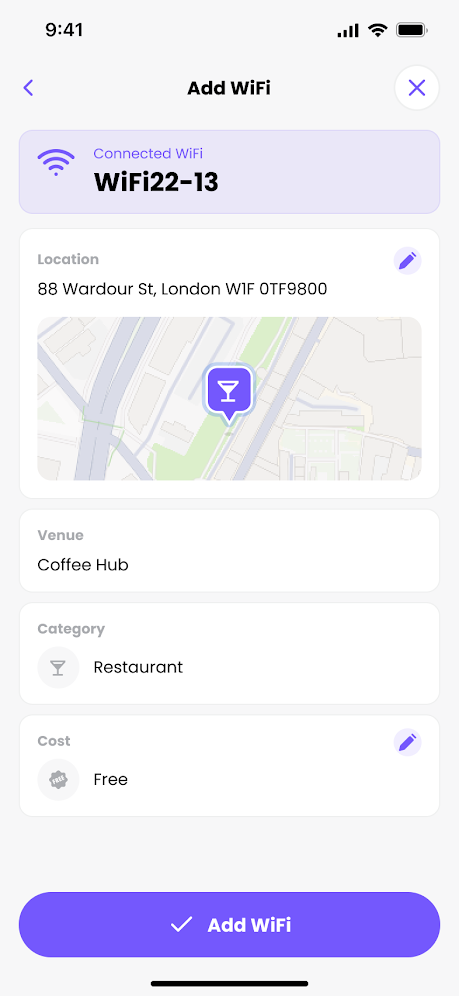
Add a spot
Add a new WiFi location
Connected to a great public network that isn't on our map? Tap the
Add WiFi (+) button in the
bottom right of the map, then enter the venue name, address and
WiFi network details. Your pin goes live straight away so other
Purple users can find and connect to it the next time they're nearby.
Fix info
Update a location
When you connect to a community WiFi spot, its card lights up green
in the app. Tap it, then tap Update Info
if the password has changed, the location is wrong, or the WiFi no
longer works.
Review
Leave a quick review
Help others find the best spots by giving a star rating and a short
comment. Tap the venue card, then tap
Rate and review to add
yours to the venue's profile.
Speed test
Test the internet speed
Tap Run Speed Test on your
connected network card. Purple checks download speed, upload speed
and latency, then saves the result to the venue's profile so other
users can see it.
.png)
.png)
.png)
.png)
.png)
.png)
.png)
.png)

 Free Guest WiFi
 Purple App
 SecurePass
 Splash Access