This guide will walk you through setting up your partner portal to help you get started using Purple WiFi.
Step 1: Registration Form
Begin your journey by filling out the partner registration form on the Purple WiFi website.. Alternatively, visit the link here.
Step 2: Email Verification
Once you've registered, check your email for a verification message. Click the link contained in the email to confirm your account - be mindful that the link is only valid for 24 hours.
Step 3: Getting Started
After confirming your email address, wait for another email that invites you to kick-start setting up your account. Click on the Get Started link in this email.
Step 4: Portal Password
You will then need to create a new password to access your Purple WiFi account. Ensure your password is strong and secure to protect your information.
Step 5: Purple Partner Dashboard
Once you've set your password, you will be directed to the Purple Partner dashboard. This will provide you with an overview of your customers, venues, users, and expired invitations.
Step 6: Adding Your First Customer
Step 1: Select Add a customer from the dashboard and then click Add customer.
Step 2: Please enter your customer's details, ensuring all mandatory fields are filled out, and then click Save Details.
Step 7: Impersonate Customer account
Step 1: You should now be redirected to the customer list, where you can view details about all your customers, such as licenses and addons. Click on the eye icon to impersonate the company.
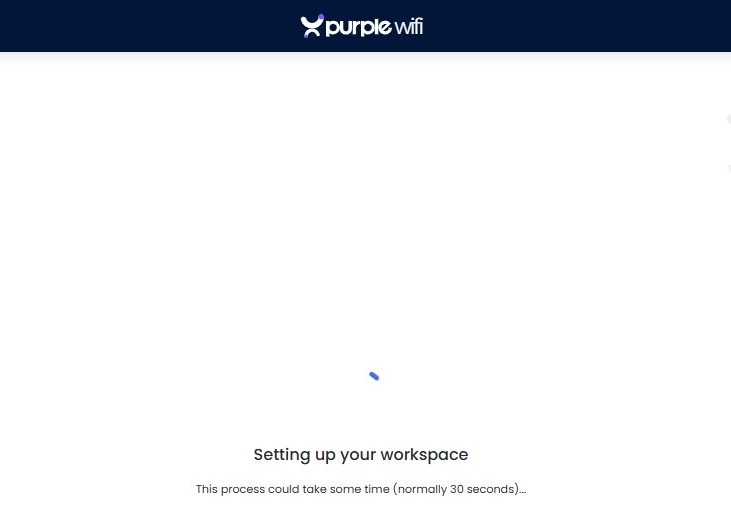
Step 2: Since this is a new customer creation, you may see this message while the system configures the customer dashboard. This should take no more than 30 seconds.
Customer Dashboard
Step 3:Once the dashboard is loaded, you will find our most popular settings available here for easy access.
Access journeys: Assign splash pages and other features of a journey.
Splash pages: Create and edit splash page designs.
Analytics: View detailed analytics reports
Management: Manage your venues, users and other settings.
Adding a Venue
Step 4: Select Management then choose Locations. Under the "Venues and Groups" section, click on the three dots and choose “Add Venue” to initiate the venue creation process.
Step 5: You will be prompted to choose "Yes, use wizard" - this feature will guide you through the necessary steps to set up your venue.
Step 6: Enter all relevant details of your venue in the provided fields and click "Next" to proceed.
Step 7: Select your hardware type from the list and provide the MAC address. You will be given the option to view or download the hardware setup guide. Be sure to download these instructions before proceeding to the final steps.
Splash Page Preview
Step 8: Once you have selected your hardware type, open the hardware guide that you previously downloaded. Follow the instructions outlined in the guide step by step, until you have completed all the steps. Connect your device to the WiFi network. You should see the default splash page displayed upon connection.
This is the end of the setup.
Splash Page Customisation
If you'd like to personalise the splash page, click Splash pages from the dashboard or navigate to Onboarding > Splash Page.
Option 1: You can choose a template
Option 2: Create your own
Access Journey Setup
After customising your splash page, proceed to Onboarding > Access Journey or click Access Journey from the dashboard to create a new journey.
Under the Splash page section, select the correct splash page from the drop-down option.
Finally, add Terms & Conditions before hitting "Publish" to make your splash page live.
Managing Users
Step 1: Allows you to invite users to join your partner portal. From the Partner dashboard, click Add user to get started.
Step 2: Fill in their details. All users are required to have an access level assigned to their account.
Step 3: Select a permission profile for the user.
After selecting the profile, an eye icon will appear next to the Permission Profile box, allowing to view the details of the access granted by that level. Finally, click Send invitation. The user will receive an invite email to proceed to login and create their password.
To manage user profiles, navigate to Permissions from the left side menu.
Analytics
The partner dashboard displays the number of current users, online and offline venues, and missing hardware, along with an interactive venue map and a chart of the most popular venues filtered by date range and locations.
FAQs
How can I access the new partner portal?
New partners signing up will automatically see the new Partner Portal.
What if I already have a partner account?
We will send you an email to login to the account.
Can I move across my existing account to the new portal?
This is not currently possible due to license models.
I have some feedback on the new Partner Portal, How do I raise this?
Please raise a Support ticket with as much detail as possible,
Can I verify a customer's license?
Yes, you can do so through the Partner Dashboard.
Can Partners set up an access journey/splashpage on behalf of the customer?
Yes, partners have the ability to impersonate a customer and can set it up. Please follow Step 7.
How does a partner invite a customer user?
The partner needs to first create the company as per the steps above, then add a user assigned to that company. This will then send the individual at that company an invite email to login and trigger their license to start from this point - see Managing Users.

 Free Guest WiFi
 Purple App
 SecurePass
 Splash Access